Trackyard
Turns songs into playable drum charts for Beat-Train on the MPC Sample and Clone Hero.
About
Trackyard turns plain songs (MP3, WAV, OGG, FLAC) into playable drum charts for Beat-Train on the MPC Sample and Clone Hero.
Charting a song by hand takes hours: you place every kick, snare and hi-hat yourself and line the tempo map up with the recording. Trackyard does a first pass for you. It separates the drums, finds the beat grid and writes down the drum hits in four difficulties. Its editor then shows where it was unsure, so you only fix what needs fixing, and saves the song straight to the MPC's SD card.
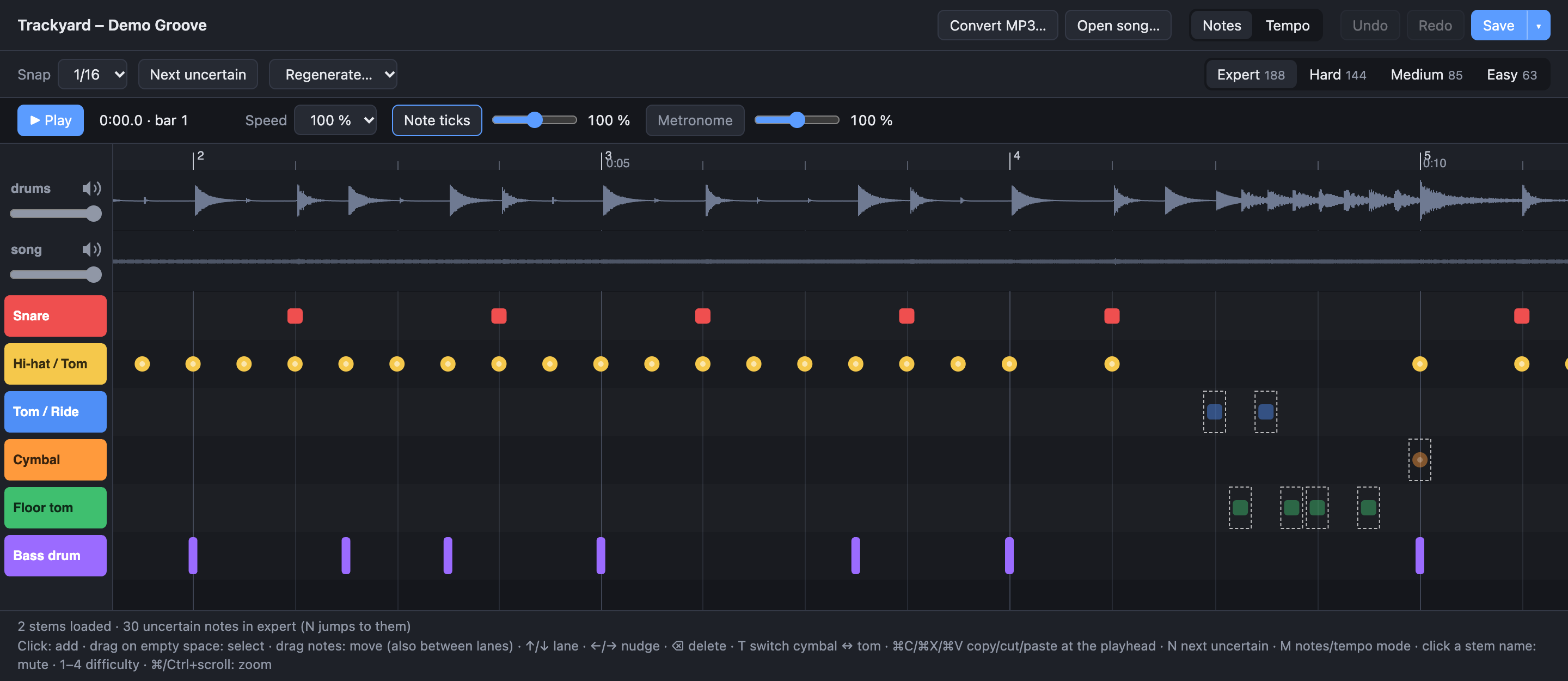
Everything runs on your computer. Beat-Train on the MPC only plays the finished song folder.
What you need
- A Mac with Apple Silicon (Linux works too, on the CPU or with CUDA).
- Python 3.11 or 3.12, ffmpeg and uv. With
Homebrew:
brew install python@3.12 ffmpeg uv. - About 1.2 GB of disk space, mostly PyTorch and the models.
Install
In the Trackyard folder:
uv venv -p 3.11 .venv
uv pip install -p .venv/bin/python -e .
The first conversion downloads about 160 MB of model weights once.
Or: the app for Mac or Windows
The app holds Python, PyTorch and ffmpeg; nothing else needs installing. The first conversion downloads the models once (about 160 MB). It isn't signed by a registered developer yet, so the system warns the first time:
- Mac (Apple Silicon):
Trackyard-<version>-arm64.dmg, about 300 MB. Open it and drag Trackyard to Applications. Start it once; macOS refuses and offers only Done or the bin, so click Done. Then go to System Settings → Privacy & Security, click Open Anyway at the bottom, and start it again. (Version 1.1.0 and older can only be opened by runningxattr -dr com.apple.quarantine /Applications/Trackyard.appin the Terminal first.) - Windows (64-bit): run
Trackyard-Setup-<version>.exe; it installs for your user, without admin rights. If Windows says it protected your PC, click More info → Run anyway. Conversions run on the CPU, about 3–4 minutes per song. With an NVIDIA graphics card (GeForce GTX 16 / RTX 20 or newer, driver 580 or newer), the start screen offers Download GPU support: a one-time 2 GB download, after which songs convert on the graphics card.
To build the app yourself, see docs/development.md.
The app opens the editor in its own window; everything below works the same.
Start
.venv/bin/trackyard edit
The editor opens in your browser (it runs locally, on 127.0.0.1:8765; --port and
--no-browser change that).
trackyard edit "path/to/Song folder" opens a song directly.
Make a chart from an MP3
- Convert MP3… and pick a song. Converting takes about 15–40 s on an M-series Mac; the new song opens when it's done.
- Listen and fix what's off (see The editor). Notes Trackyard was unsure about are dimmed with a dashed outline; N jumps to the next one.
- Save (⌘S). The first save of a new song asks for a folder and creates the song
folder (
Artist - Title) in it. Until then the song is only a draft, and converting the next song throws it away. An amber dot on Save means unsaved changes. - To play it on the MPC: Save ▾ → Save as… (⇧⌘S) and pick the SD card. The song
lands in
BeatTrain/Songs/there, and you keep editing the copy.
Open song… opens any song folder with a song.ini and notes.mid or notes.chart,
also Clone Hero songs from elsewhere.
The editor
At the top: Convert MP3…, Open song…, the Notes | Tempo switch, Undo, Redo and Save ▾. Below it are the tools of the current mode, then the transport bar with Play, the position, speed, note ticks and metronome.
The timeline shows one waveform per audio stem (drums first) and six rows named and coloured like Beat-Train's pads: Snare, Hi-hat / Tom, Tom / Ride, Cymbal, Floor tom, Bass drum. Cymbals are drawn round, drums square.
Notes
| Action | How |
|---|---|
| Add a note | Click an empty spot in a row (snaps to the chosen grid) |
| Select | Click a note (⇧ adds), drag a box on empty space, ⌘A for all; Esc clears |
| Move | Drag the selection, later/earlier and onto other rows |
| Nudge | ←/→ one grid step, ↑/↓ one row |
| Delete | ⌫ |
| Cymbal ↔ tom | T. Applies to every difficulty at that spot |
| Copy, cut, paste | ⌘C, ⌘X, ⌘V (pastes at the playhead), e.g. to repeat a bar in every chorus |
| Uncertain notes | N next, ⇧N back |
| Undo / redo | ⌘Z / ⇧⌘Z |
| Difficulty | 1–4 or the tabs on the right of the toolbar |
| Rebuild easier levels | Regenerate…: all of Hard, Medium and Easy, or one, from Expert |
Expert is the source: Hard, Medium and Easy are made from it by leaving notes out. So fix Expert first, then regenerate the easier levels.
Difficulty settings
On Hard, Medium or Easy a panel controls how that level is made from Expert. Every change rebuilds the level right away (hand edits on it are replaced; ⌘Z undoes).
| Control | Effect |
|---|---|
| Preset | MPC: even steps for the pads. Clone Hero: like hand-made charts, no controls. Custom: anything you changed |
| Density | How much of Expert stays |
| Kick, Snare, Hi-hat, Toms, Cymbals | That instrument's share of its Expert notes; 0 turns it off. Downbeats and beats stay first, then eighths, then 16ths |
| Grid, Triplets | The finest note value kept |
| Hands, Notes at once | How many hand notes, and notes including the kick, may sound together |
| Shortest gap | Minimum time between two kick hits, and between two hand hits |
The note count, notes per second and share of Expert show on the right. The settings are saved with the song. Hand-made charts and songs converted before these settings existed start on Clone Hero.
Tempo
If the grid drifts away from the music, switch to Tempo (or press M):
| Action | How |
|---|---|
| Fix the grid | Drag a beat line onto the hit in the drum waveform. It snaps to the nearest hit (hold Alt to place it freely) and becomes an anchor (◆); the tempo between anchors is recomputed |
| Remove an anchor | Double-click its line |
| Move the whole chart | Offset field or −5/+5 ms, or drag the first beat |
| Snap beat to hit | Pins the beat nearest the playhead onto the nearest drum hit |
| Revert tempo | Back to the tempo map as opened |
A dot under each beat shows how far the nearest drum hit is: green under 10 ms, amber 10–25 ms, red further, none when there's no hit nearby. Notes keep their place in the bar, so they move with the grid.
Playback
| Action | How |
|---|---|
| Play / pause | Space, or Play |
| Seek | Click the ruler; ←/→ one beat when nothing is selected; Home to the start |
| Speed | 100 %, 75 % or 50 %; the pitch stays |
| Scroll / zoom | Scroll / ⌘ or Ctrl + scroll |
| Hear the chart | Note ticks (on by default) and Metronome in the transport bar |
| Mute a stem | Click its name or speaker icon left of its waveform |
| Volumes | Each stem's slider under its name; note ticks and metronome in the transport bar |
Pad sounds for Beat-Train
Beat-Train can mute the drum stem and play a real drum sound on each pad strike
instead. The ♪ button right of each row picks that row's sound from the song's own
drum stem: it steps through the row's hits, best first (as few other drums at the same
time as possible, ringing out freely, no ghost notes), and plays each one. ‹ › (or ←/→) step, ▶︎ plays again, Use this
picks it, No sound removes it. Save writes the picks to sounds/ in the song
folder. The drum stem is one track, so with pad sounds on Beat-Train mutes all of it: a
pad without a sound stays silent then. Songs without a drum stem can't get
pad sounds.
What saving changes
Only the drum notes, the difficulty settings, the pad sounds, and the tempo map and
offset when you changed them. Guitar, vocals and everything else in a song from elsewhere stay as they
were. The first plain Save into an existing song keeps the original chart as
notes.mid.orig (or notes.chart.orig). 5-lane charts open read-only.
Convert from the command line
For many songs at once:
.venv/bin/trackyard convert "Artist - Song.mp3" more/*.flac --sd /Volumes/MPC
Each song becomes a folder under out/:
| File | Contents |
|---|---|
notes.mid |
The drum chart in Expert, Hard, Medium and Easy, with the tempo map |
song.ini |
Name, artist, album, year and genre from the tags; length; drum difficulty |
drums.ogg |
The drums |
song.ogg |
Everything else |
album.jpg / .png |
The cover, when the file has one |
trackyard.json |
Trackyard's notes for the editor (confidences, settings) |
sounds/ |
Only after picking pad sounds in the editor: one WAV per Beat-Train pad, named after the row's colour: kick.wav (Bass drum), red.wav (Snare), yellow.wav (Hi-hat / Tom), blue.wav (Tom / Ride), orange.wav (Cymbal), green.wav (Floor tom). With pad sounds on, a pad without a file stays silent |
| Option | Effect |
|---|---|
--sd PATH |
Also copy to PATH/BeatTrain/Songs/ (the MPC's SD card) |
--out DIR |
Where the song folders go (default out) |
--levels clone-hero |
Easier levels like hand-made Clone Hero charts. The default mpc makes even steps for the pads (about 65 / 45 / 25 % of Expert) |
--tempo auto|half|normal|double |
Tempo relative to the detected beat. auto (default) doubles slow or 16th-note hi-hat songs like a charter would, and halves above 190 BPM |
--grid 16 |
Snap to 1/16 at most (default 1/32) |
--no-triplets |
No triplets |
--expert-only |
Only Expert, no easier levels |
--single-audio |
One song.ogg, no separate drums |
--lane-rules |
Choose cymbal and tom rows with simple rules instead of the trained models |
If something goes wrong
- The first conversion is slow: it downloads the models once and loads them; the next songs are quicker. The same file a second time takes only seconds.
- "SD card path not found": check the path after
--sd, e.g./Volumes/MPC. - The tempo is half or double what you hear: convert again with
--tempo halfor--tempo double. - The grid drifts or sits a little off: fix it in Tempo mode (see Tempo).
- Hi-hats, toms and cymbals land in the wrong row: this is the weakest part of the detection. Fix them in the editor; T switches between cymbal and tom.
- Medium or Easy is too hard: use the MPC preset, or lower the density, in the difficulty settings.
- Port 8765 is busy:
trackyard edit --port 8766. - Not on a Mac: there are no file dialogs; you type the path instead.
More
- How close the automatic charts get to hand-made ones: docs/evaluation.md
- What's next: docs/plan.md
- How it works, development, evaluation and tests: docs/development.md
- License: MIT. The models below keep their own licences.
Models used:
| Component | Used for | Licence |
|---|---|---|
Demucs htdemucs |
separating the drums | MIT |
| Beat This! | beats and downbeats | MIT (code and weights) |
| ADTOF via ADTOF-pytorch | drum transcription | ADTOF: CC BY-NC-SA 4.0, non-commercial |
ADTOF's licence allows private use. A commercial release would need a different transcription model.
Recent releases
-
Release notes
Download
- Mac (Apple Silicon):
Trackyard-1.2.0-arm64.dmg - Windows (64-bit):
Trackyard-Setup-1.2.0.exe
Install over the old version; your songs, settings and downloaded models stay. The app isn't signed by a registered developer: see the README for the first start.
New: pad sounds for Beat-Train
Beat-Train can mute the drum stem and play a real drum sound on each pad strike instead. In the editor, the ♪ button right of each row picks that row's sound from the song's own drum stem:
- It steps through the row's hits (‹ › or ←/→), best first: as few other drums at the same time as possible, ringing out freely, no ghost notes. Each one plays, and the cut is marked in its row.
- Use this picks it, No sound removes it; undo works as for notes.
- Save writes the picks to
sounds/in the song folder:kick.wav,red.wav,yellow.wav,blue.wav,orange.wav,green.wav, named after the row colours.
A sound starts 1 ms before the hit's attack in the drum stem, found to the sample, and lasts as long as the hit rings, up to the next hit. With pad sounds on, Beat-Train mutes the whole drum stem, so a pad without a sound stays silent. Songs without a drum stem can't get pad sounds.
- Mac (Apple Silicon):
-
Release notes
Download
- Mac (Apple Silicon):
Trackyard-1.1.1-arm64.dmg - Windows (64-bit):
Trackyard-Setup-1.1.1.exe
Fixed
- macOS: "damaged" app. The Mac app is now signed ad hoc, so macOS no longer calls it damaged and only offers the bin. It is still not signed by a registered developer: start it once, click Done, then System Settings → Privacy & Security → Open Anyway, and start it again. See the README.
Nothing else changed since 1.1.0; the Windows app is the same.
- Mac (Apple Silicon):
-
Release notes
Download
- Mac (Apple Silicon):
Trackyard-1.1.0-arm64.dmg - Windows (64-bit):
Trackyard-Setup-1.1.0.exe
Install over 1.0; your songs, settings and downloaded models stay. The app is still unsigned: see the README for the first start.
Fixed
- Regenerate after a tempo change: Regenerate… and the level controls now use the tempo map you are editing. Before, after an unsaved tempo or offset change, the shortest-gap rules of Hard, Medium and Easy worked with the old timing.
- Beat grid to the end of the song: the grid and the metronome now run to the end of the audio, not just a few beats past the last note.
Changed
- Saving refuses notes a chart file can't hold, like a cymbal on one difficulty where another has a tom at the same spot, instead of quietly turning one of them into the other.
- Under the hood: chart reading and writing, the song folder, and the editor's document, tempo map and playback each live in one module now, with tests for the editor's JavaScript.
- Mac (Apple Silicon):